Uploading fraud data
On the Upload page you paste fraud records, check them in a table and send them to the Exchange. Your company earns tokens for every record it stores.
For what a record is and which fraud types exist, see Fraud events and Contributions.
Uploading
- Open Upload in the menu.
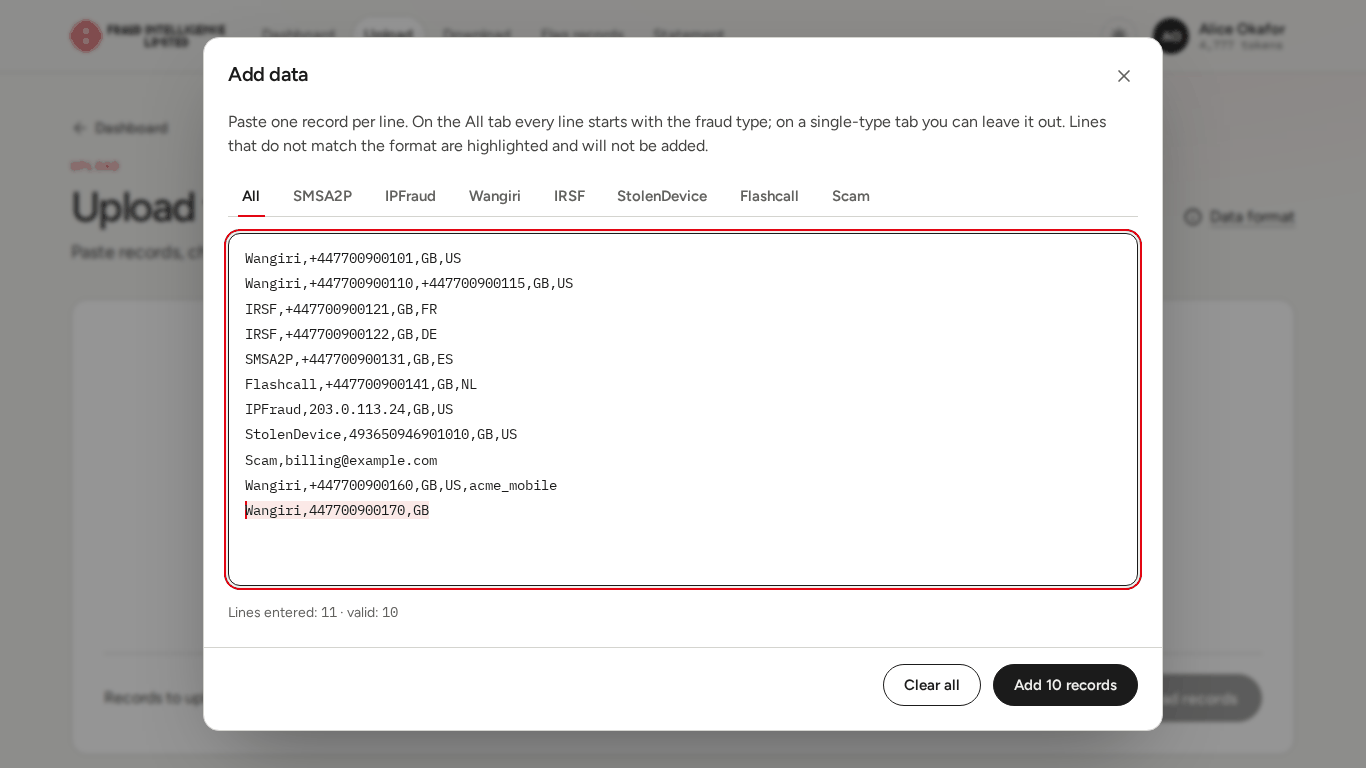
- Select Add data.
- Choose a tab: All, or the tab of one fraud type.
- Paste or type your records, one per line. Lines that do not match the format are highlighted. The dialog counts them: "Lines entered" and "valid".
- Select the button that adds the valid lines. It names their number, for example Add 10 records. Only the valid lines are added to the table.
- Check the table. Use the pencil to edit a record and the cross to remove it. A removed record stays in the table marked "Removed" until you upload, and Restore brings it back.
- Repeat steps 2 to 6 if you have more records.
- Select the upload button. It names the number of records, for example Upload 10 records.
The table has the columns Fraud type, Identifier or range, Origination → destination and Source. The tabs above it filter the table by fraud type and show the number of records of each type.
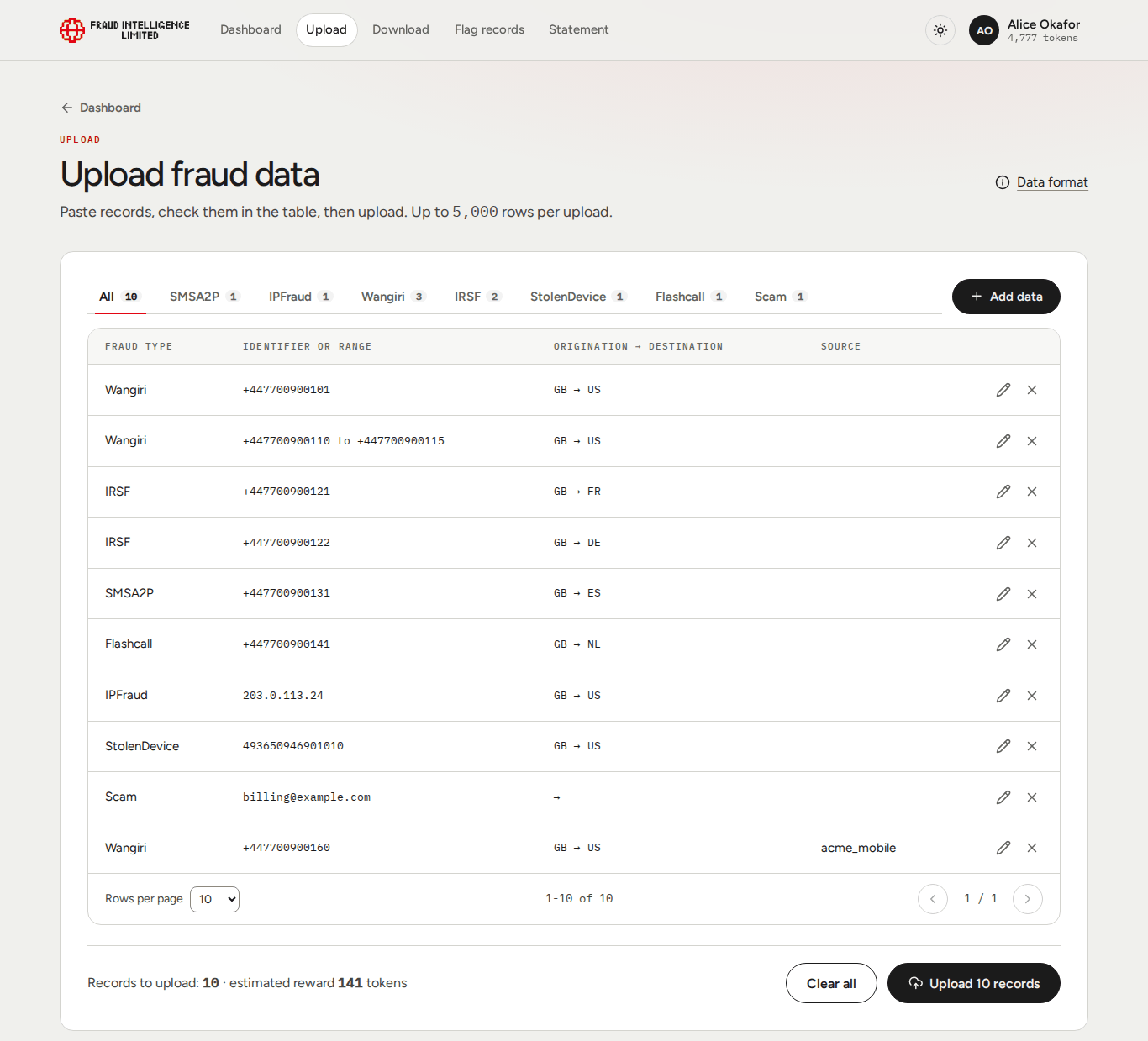
Below the table the page shows Records to upload and the estimated reward in tokens. Clear all empties the table after you confirm; nothing has been sent at that point.
Nothing is sent to the Exchange until you select the upload button.
Row limit
One upload holds up to 5,000 rows. When the table is full, Add data is disabled and the page says "You have reached the limit of 5,000 rows." Lines that go over the limit when you add data are left out. Upload what you have, then start the next batch.
A range of numbers is one row, however many numbers it covers.
Data format
Data format, next to the page title, opens the same reference inside the web app.
One record per line. Fields are separated by commas, in this order:
| # | Field | What to enter |
|---|---|---|
| 1 | Fraud type | One of IPFraud, Wangiri, StolenDevice, IRSF, SMSA2P, Scam, Flashcall. Required on the All tab. Can be left out on the tab of one fraud type. |
| 2 | Identifier | A phone number, IMEI, IP address, website or email address, depending on the fraud type. For a range, give the first and the last identifier as two fields. |
| 3 | Origination country | Two-letter ISO 3166 code, for example GB. |
| 4 | Destination country | Two-letter ISO 3166 code, for example US. |
| 5 | Source | Optional. The company ID of the company the data came from, if it is not your own. |
Accepted identifiers per fraud type
| Fraud type | Identifier | Range | Origination | Destination |
|---|---|---|---|---|
Wangiri, IRSF, SMSA2P, Flashcall | Phone number in E.164 format: +, then 2 to 16 digits, the first of which is not 0 | Yes | Required, except for numbers that start with +882 or +883 | Required |
StolenDevice | IMEI: 15 digits, with a valid check digit | No | Required | Required |
IPFraud | IPv4 address | Yes | Required | Required |
Scam | Phone number in E.164 format, website address, or email address | Phone numbers only | Optional | Optional |
More rules:
- In a range, the first identifier must not be greater than the last.
- For a number of an international network (starting with
+882or+883), leave the origination country out. - The source must be the company ID of a member company.
Examples
IPFraud,255.255.255.255,GB,US
Wangiri,+447000123456,GB,US
StolenDevice,493650946901010,GB,US
IRSF,+447000123456,GB,US
SMSA2P,+447000123456,GB,US
Flashcall,+447000123456,GB,US
Scam,+447000123456,GB,US
Scam,name@example.com
Scam,company.com
A range. This line covers six numbers:
Wangiri,+447000123456,+447000123461,GB,USA record with a source:
Wangiri,+447000123456,GB,US,source_company_idValidation messages
| Where | Message | Meaning |
|---|---|---|
| Add data dialog | A highlighted line | The line does not match the format for the selected tab. It will not be added. |
| After adding | "Records added: X of Y" | X lines were added out of Y entered. If X is lower, lines that did not match the format or went over the row limit were left out. |
| Edit record dialog | "Pick a fraud type." | No fraud type is selected. |
| Edit record dialog | "Enter an identifier that fits the fraud type. For a range, join two with a hyphen." | The identifier is not valid for the fraud type. |
| Edit record dialog | "Enter a two-letter country code, such as GB." | A country is missing or is not a two-letter code. |
| Above the upload button | "This upload is N records over your upload limit" | The table holds more records than your upload limit has left. Remove records before you upload. See The upload limit. |
| After the upload button | "Nothing was uploaded": "The server rejected this upload", with the reason from the Exchange | The Exchange refused the whole upload. Nothing was stored. Fix the records and select Try again, or Cancel. |
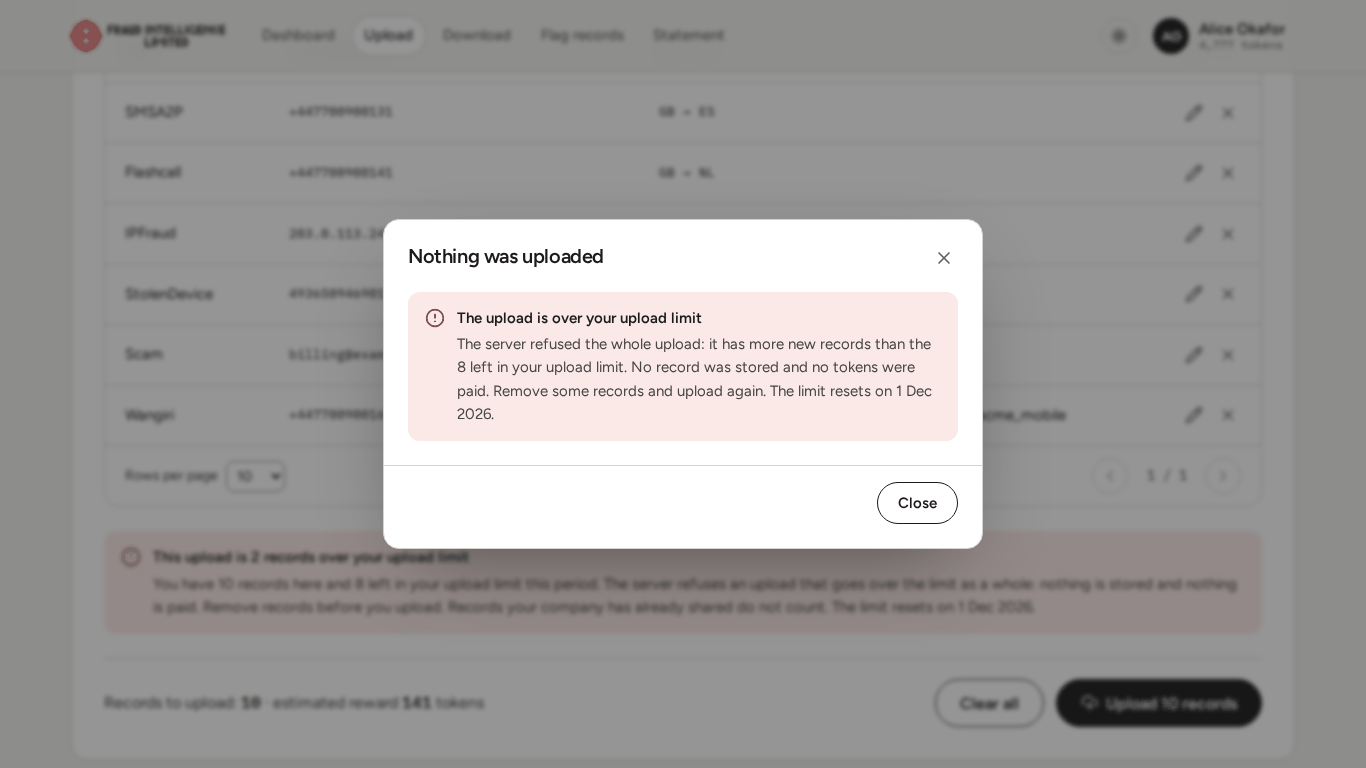
| After the upload button | "Nothing was uploaded": "The upload is over your upload limit" | The upload has more records to store than the limit has left. Nothing was stored and no tokens were paid. See The upload limit. |
The Exchange checks every upload again: the identifier must fit the fraud type, the country codes must exist, and a named source must be a member company. If one row fails, the whole upload is refused.
The Exchange is stricter than the dialog in two cases. The dialog takes an IPv6 address and a phone number line without an origination country; the Exchange refuses both, and nothing is uploaded. Enter IPv4 addresses, and give the origination country for every phone number that does not start with +882 or +883.
The result
After a successful upload the page shows:
- how many records were sent in the upload, as "N records were added to the Exchange";
- Your reward: the tokens your company earned. If the reward is lower than the estimate, the estimate is shown struck through next to it;
- what is left of the upload limit, in records, and when it resets.
Back to the dashboard leaves the page.
How the records were handled:
| Outcome | Meaning |
|---|---|
| Stored | The record was added to the Exchange. It is rewarded and counts against the upload limit. |
| Already held | Your company already holds an active record with the same identifier and fraud type. It is not stored again and not rewarded again. |
The split between stored and already held records is on the Statement, under Upload receipts, together with the tokens earned and the receipt of the upload. An upload whose records were all already held earns nothing and has no receipt.
Each stored record gets an expiry date from the Exchange: 60 days after the upload. A record is active until it expires or is flagged.
Rewards
- The reward is 10 tokens per identifier. A range is rewarded for every identifier it covers.
- If a record names another company as its source, the reward is split: 10 percent to your company and 90 percent to the source company.
- The dashboard shows the lowest and highest reward per identifier for your company.
See Tokens, rewards and limits.
The upload limit
- The limit belongs to your company and is shared by its users.
- It is counted in records stored. Records already held do not count.
- An upload that would store more records than the limit has left is refused as a whole: no record is stored and no tokens are paid.
- At the end of each period the limit resets in full. The date is on the dashboard and on your profile.
- The dashboard and My company show what is left as Records you can still upload.
- Company admins receive an email when the company has used 80 percent of its limit for the period.
When an upload goes over the limit
The page warns you before you upload. If the table holds more records than the limit has left, a notice above the upload button reads "This upload is N records over your upload limit". It gives the number of records in the table and the number left in the limit for the period.
If you upload anyway, or the limit was used by a colleague in the meantime, the Exchange refuses the upload and the page shows the dialog Nothing was uploaded:
The upload is over your upload limit
The server refused the whole upload: it has more new records than the 8 left in your upload limit. No record was stored and no tokens were paid. Remove some records and upload again. The limit resets on 1 Dec 2026.
The number and the date in the text are those of your company. Close returns to the table, which still holds your records. Remove some of them and upload again, or wait until the limit resets.