Registration
You apply to FIL Exchange from the sign-in page of the web app. Fraud Intelligence Limited reviews every application before the account can share or download data.
Registering a company or joining one
There is one form for both cases. The Company name you enter decides which one applies:
- If no member company has that name, the application creates the company. You are its first user and become its company admin.
- If a member company already has that name, you join it as a regular user. The company's country, membership type, balance and limits stay as they are.
Names are compared without regard to capital letters, and a space counts the same as an underscore. To join your colleagues, ask them for the exact company name they registered with.
For what a company admin can do, see My company and Roles and approval.
Applying
- Open https://app.fraudintelligencelimited.com and select Apply to join.
- Fill in step 1, Company and contact, and select Next.
- Fill in step 2, Sign-in details, and select Create account.
Step 1: Company and contact
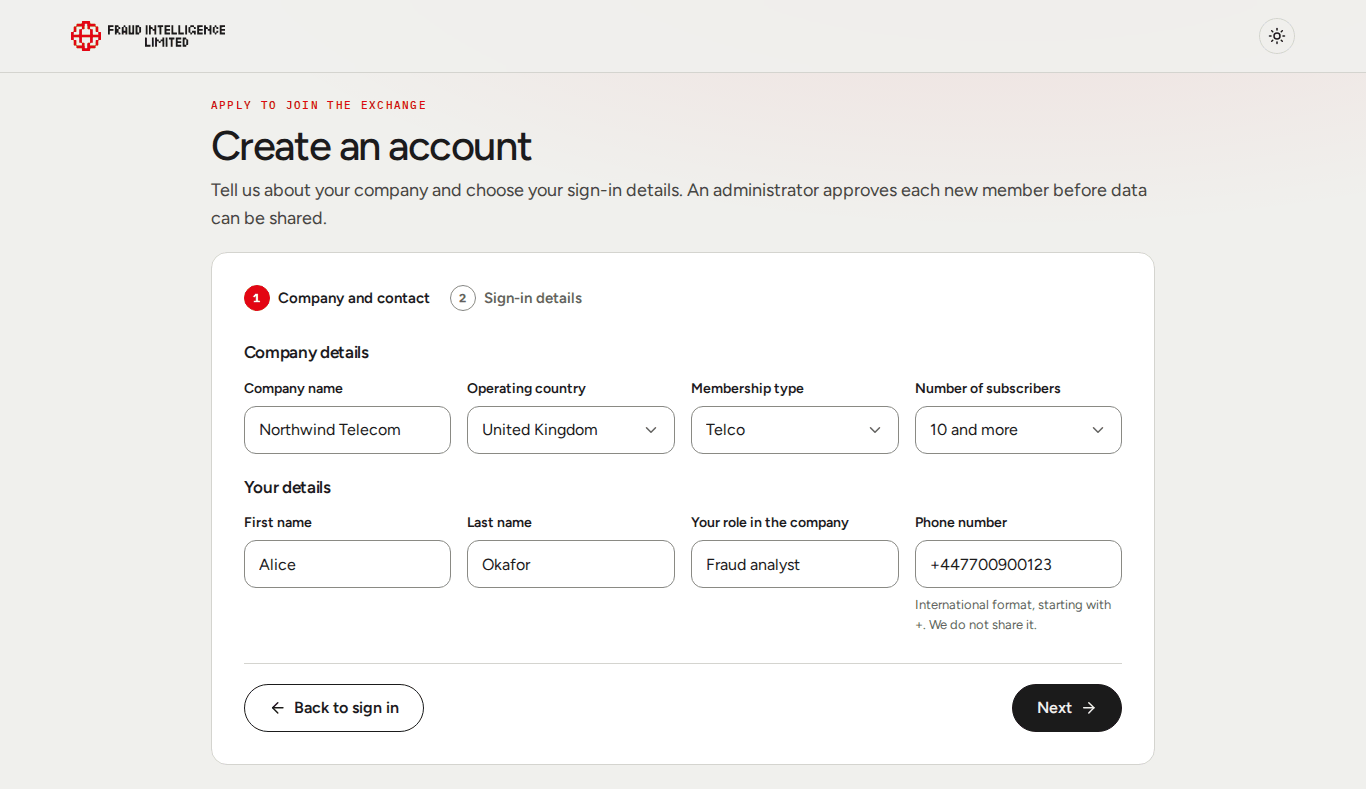
The fields are in two groups, Company details and Your details.
| Field | What to enter |
|---|---|
| Company name | The name of your company. Required. |
| Operating country | Pick the country from the list. Required. |
| Membership type | Telco or Vendor. Required. |
| Number of subscribers | Shown for Telco only: 0 to 5m, 5 to 10m or 10 and more. Required for a telco. |
| First name | Required. |
| Last name | Required. |
| Your role in the company | Your job title or function. Required. |
| Phone number | International format: +, then 7 to 15 digits, the first of which is not 0. Required. |
Back to sign in returns to the sign-in page. If you select Next with a field missing, the form lists the fields still to fill in. A phone number that another account already uses is refused: "An account with this phone number already exists. Use another number or sign in."
Step 2: Sign-in details
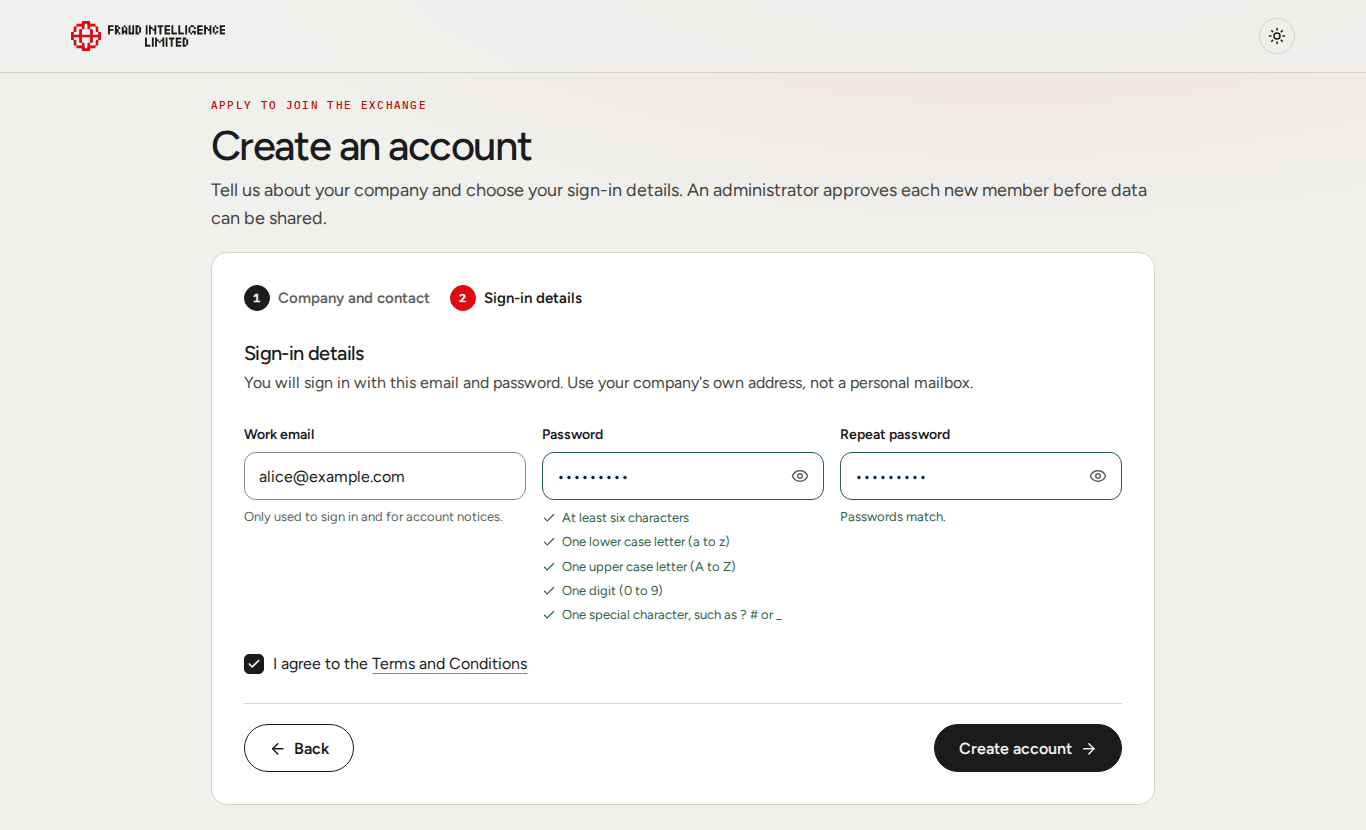
| Field | What to enter |
|---|---|
| Work email | Your company email address. You sign in with it, and account notices are sent to it. |
| Password | See the rules below. |
| Repeat password | The same password again. |
| I agree to the Terms and Conditions | Must be ticked. |
Back returns to step 1 and keeps what you entered. Create account stays disabled until the email is valid, the password meets every rule, both passwords match and the terms are accepted.
If the email address already has an account, the form says so and offers links to sign in or to reset the password.
Password rules
The web app checks each rule as you type and ticks the ones that are met. A password must have all of these:
- At least six characters
- One lower case letter (a to z)
- One upper case letter (A to Z)
- One digit (0 to 9)
- One special character, such as
?#or_
Your password never leaves your browser. The web app derives two key pairs from your email and password and registers only the public keys. See Profile and security.
While you wait for approval
After Create account you are signed in and see "Your account is created and waiting for approval", with the buttons Go to the dashboard and View your profile.
While the account is waiting:
- You receive an email with the subject "Your registration request has been accepted". It confirms that the application was received.
- You can sign in and open the Dashboard and your Profile.
- The dashboard and the profile show "Your account is waiting for approval".
- Upload, Download, Flag records and Statement are not in the menu, and the buttons for them on the dashboard are disabled.
- A password reset link is not sent for an account that is still waiting.
Approval is done by Fraud Intelligence Limited, not by your company admin.
The decision
| Outcome | What happens |
|---|---|
| Approved | You receive "Registration request has been approved". Reload the web app to see the full menu. Company admins of your company are told that a user was added. |
| Rejected | You receive "Registration request has been rejected" with the reason. The application is removed, so you can apply again. |
When the first user of a company is approved, the company receives its upload limit and, once, a welcome bonus in tokens. Users who join later share the same balance and limit. See Tokens, rewards and limits.