Signing in
You sign in at https://app.fraudintelligencelimited.com with your work email and your password. If your account has a second step set up, the web app asks for it after the password.
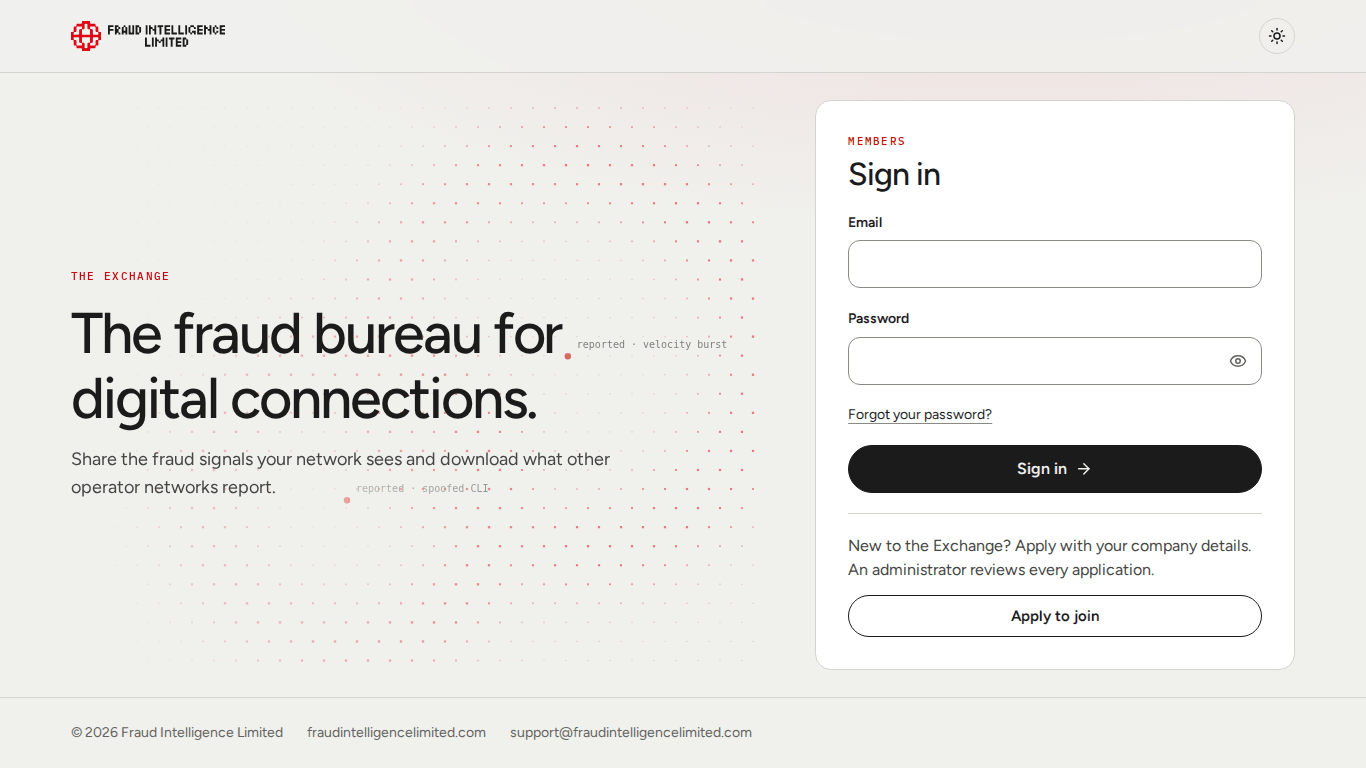
Sign in
- Enter your Email and Password.
- Select Sign in.
- If the Second step card appears, answer it as described below.
You land on the Dashboard.
| Message | Meaning |
|---|---|
| "The email or password is not right. Check both and try again." | The pair was not accepted. The message is the same whichever of the two is wrong. |
| "Your account is blocked" | Fraud Intelligence Limited blocked the account. To dispute the decision, write to support@fraudintelligencelimited.com. |
Every sign-in, accepted or refused, is listed in your sign-in history.
The second step
The second step is one more proof that it is you. An account can have up to three methods. You choose them, and which one is asked first, on the Security tab. An account with no method set up signs in with the password alone.
The card is titled Second step and marked "Step 2 of 2".
| Method | What it asks for |
|---|---|
| Email code | The code sent to your email address, typed into Verification code. Then Verify and sign in. |
| Authenticator app | The 6-digit code your authenticator app shows, typed into Code from the app. Then Verify and sign in. |
| Passkey | Select Use your passkey. Your browser or device asks for your fingerprint, face or screen lock. Nothing is typed. |
Email code
- The code is valid for 5 minutes.
- It works once.
- Request another code becomes available one minute after the last code was sent. The button shows the time left.
- If you enter a code after it has expired, a fresh one is sent and the web app tells you so.
- No email? Check the spam folder, then request another code.
Authenticator app
The app shows a different code every 30 seconds, and a code works once. If a code is refused, wait for the next one and try again.
Passkey
A passkey works only in a browser and on a device that support passkeys. If your account has a passkey as its only method and the browser cannot use it, the card says "This browser cannot use a passkey". Sign in from a browser or device that supports passkeys.
If the prompt is closed or times out, select Use your passkey again or switch to another method.
Using another method
If you have more than one method, the card lists the others under Use another method:
- Use a passkey
- Use the authenticator app
- Email me a code
Back to sign in returns to the email and password form.
Forgotten password
- On the sign-in page, select Forgot your password?
- Enter the email address of your account and select Send reset link.
- Open the link in the email with the subject "Password reset link".
- Enter the password you want to use, repeat it, and save. The password rules are the same as at registration.
- The web app signs you in with the changed password. If your account has a second step, it is asked here too.
What to expect:
- A link can be requested once a minute for an address.
- A link works once.
- No link is sent for an address that has no account, or for an account that is still waiting for approval. If no email arrives, check the address and the spam folder.
- If you are signed in as another user when you open the link, the page says "This link is for another account". Sign out first, then open the link again.
A password reset has the same effects as changing the password:
- Your keys for the API change, because they are derived from your email and password.
- Every open session of your account ends.
- Integrations that sign with the old keys must be updated.
- You receive an email with the subject "Account recovery success".
Sessions
A session ends 24 hours after its last renewal. While you use the web app, it renews the session by itself. After 24 hours without use you sign in again.
You can see every open session and end them all on the Security tab.
The "no access" page
The web app shows this page when you open an address your account is not allowed to use. Nothing is changed on your account.
| Heading | When you see it |
|---|---|
| "This page is for company admins" | You opened My company and your account is not a company admin. See My company. |
| "You do not have access to the admin panel" | You opened an address of the admin panel. It is only for Fraud Intelligence Limited administrators. |
The page names the account you are signed in with and the page you asked for. Back to the dashboard takes you to the dashboard. If you think you should have access, write to support@fraudintelligencelimited.com.