My company
My company is the page for company admins. It shows the company's team and how each person signs in, what the company shared and downloaded, and its token balance and upload limit.
The company admin is the first user of the company: the person who registered it. Other users do not have My company in the menu, and opening its address shows the "no access" page.
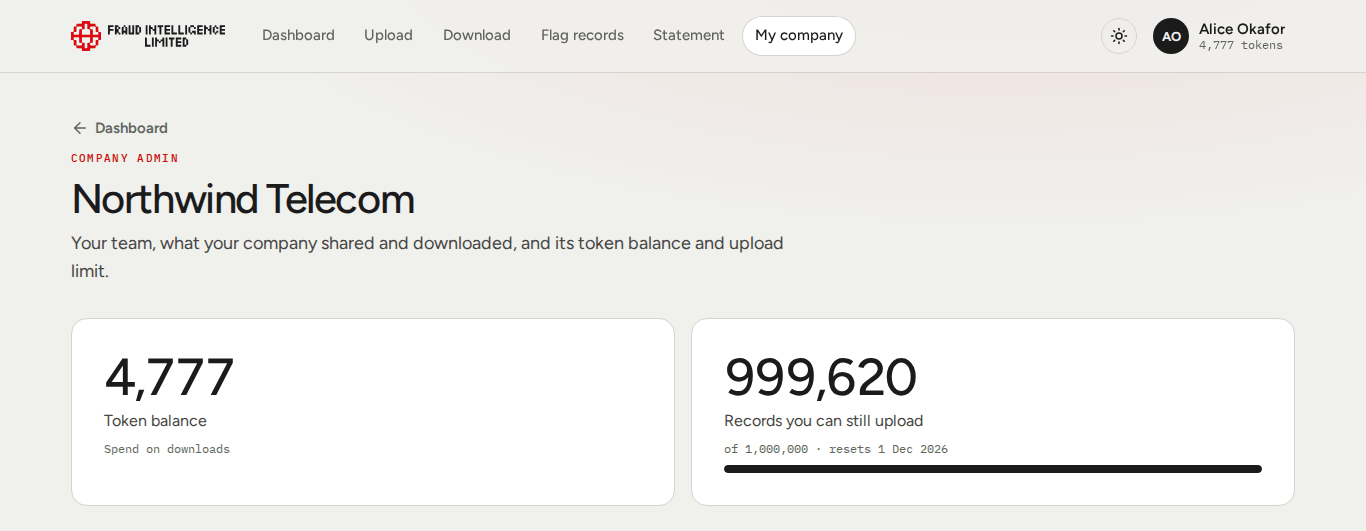
The page is titled with the name of your company. It is read-only. Nothing on it changes the company or its users, except Sign out everywhere, which ends your own sessions.
What a company admin can and cannot do
| A company admin can | A company admin cannot |
|---|---|
| See every approved user of the company and whether they are blocked. | Approve or reject a person who applied to join the company. |
| See which second step methods each user has set up. | Remove, block or unblock a user. |
| See the sign-ins of the whole team for the last 90 days. | Set up, change or remove another user's second step, or reset their password. |
| See the company's activity, statistics, balance and upload limit. | Change the balance, the upload limit, the plan or the company details. |
| Do everything a regular user can: upload, download, flag, read the statement. | Pass the company admin role to another user. |
Approving, rejecting, removing, blocking and unblocking users is done by Fraud Intelligence Limited. To have a user removed or blocked, or for any other change in the right-hand column, write to support@fraudintelligencelimited.com. See Roles and approval.
Balance and limit
| Card | Content |
|---|---|
| Token balance | The company's tokens, to spend on downloads. |
| Records you can still upload | What is left of the company's upload limit for the current period, in records, with the full limit, the date it resets, and a bar. |
The balance and the upload limit belong to the company and are shared by all its users. Every upload, download and flag by any user changes the same figures. The limit is counted in records stored and resets in full at the end of each period. Who did what is on the Statement.
Statistics
The page shows the same two sections as the Dashboard:
- Your last 30 days: records shared, records downloaded, and the company's part of what the network shared. Next to the chart Records you shared per day, this page adds the chart Records you downloaded per day.
- Statistics: records shared by fraud type, tokens earned and spent each month, and the use of the limit this period.
Your team and how it signs in
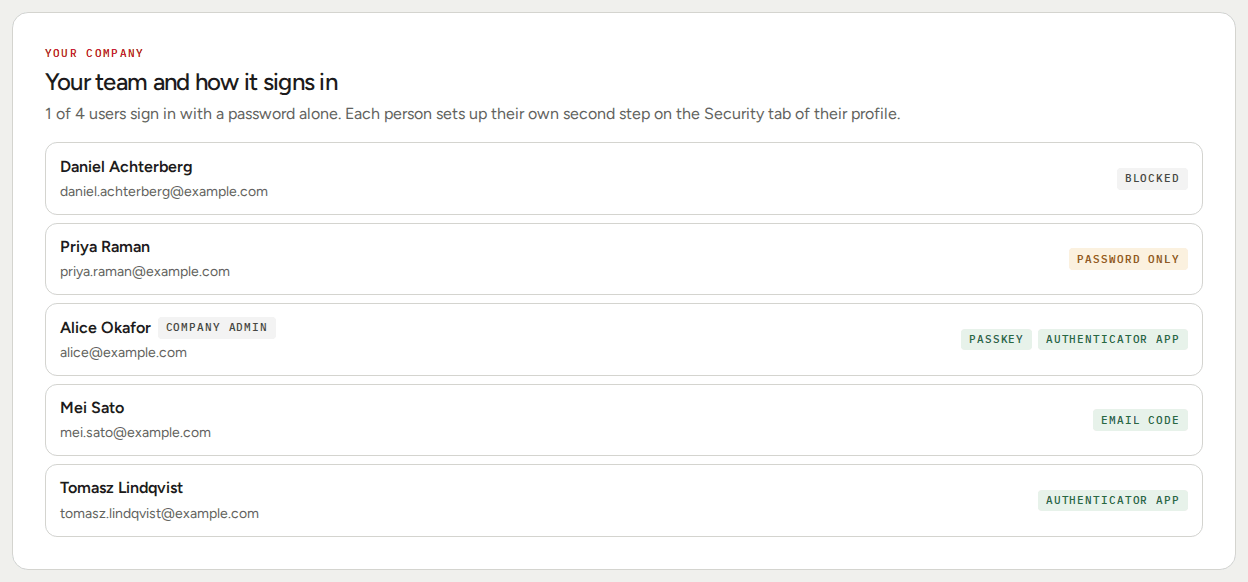
The card lists every approved user of the company.
| Shown | Meaning |
|---|---|
| Name and email | The user. The badge Company admin marks the company admin. |
| Passkey, Authenticator app, Email code | The second step methods the user has set up. |
| Password only | The user has no second step. Only the password protects the account. |
| Blocked | Fraud Intelligence Limited blocked the account. |
Users without a second step are listed first, blocked users among them. The line above the list sums it up, for example "1 of 4 users sign in with a password alone". Blocked users are not counted in it.
People who applied to join and are still waiting for approval are not in the list.
You cannot set up a second step for someone else. Each person does it on the Security tab of their own profile. See Profile and security. Ask the users marked Password only to add one.
Recent sign-ins of the team
Every sign-in to any account of the company in the last 90 days, refused ones too, latest first. Each row shows what happened, the date and time, the browser and system, the IP address, the email of the user, and the badge Signed in or Refused. Show older loads more.
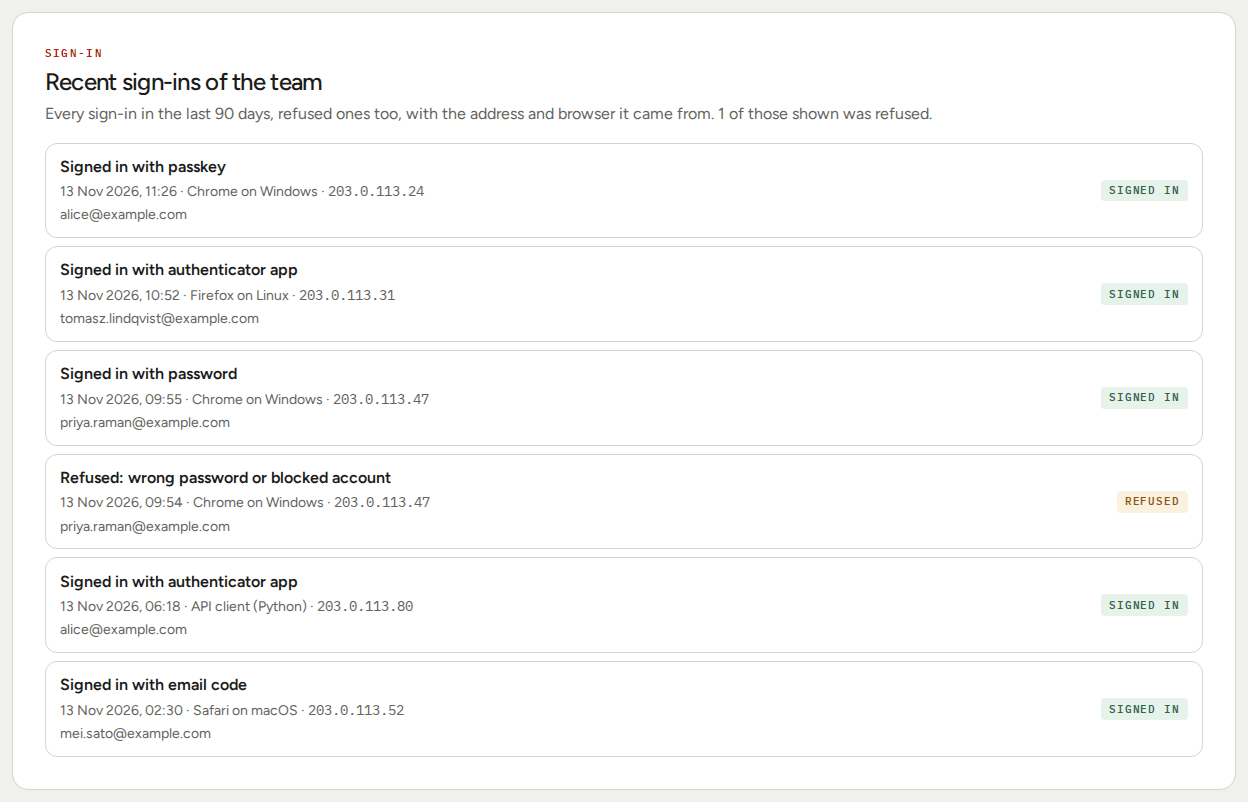
The rows read the same way as in a user's own sign-in history.
Open sessions
The sessions of your own account, with Sign out everywhere. It is the same card as on your Security tab. It does not show or end the sessions of other users.
Emails for company admins
Company admins receive these emails in addition to their own security emails:
| Subject | Sent when |
|---|---|
| A user was added to your company | Fraud Intelligence Limited approved a user who applied to join your company. Names the user's email. |
| A user was removed from your company | Fraud Intelligence Limited removed a user of your company. Names the user's email. |
| Your company has used most of its allowance | The company spent 80 percent of the tokens it had this month, or used 80 percent of its upload limit for the period. Sent once per period for each of the two. |
If a user was added or removed and you did not expect it, write to support@fraudintelligencelimited.com.