Downloading fraud data
On the Download page you choose which records you want, pay for them with tokens and save them as a CSV file.
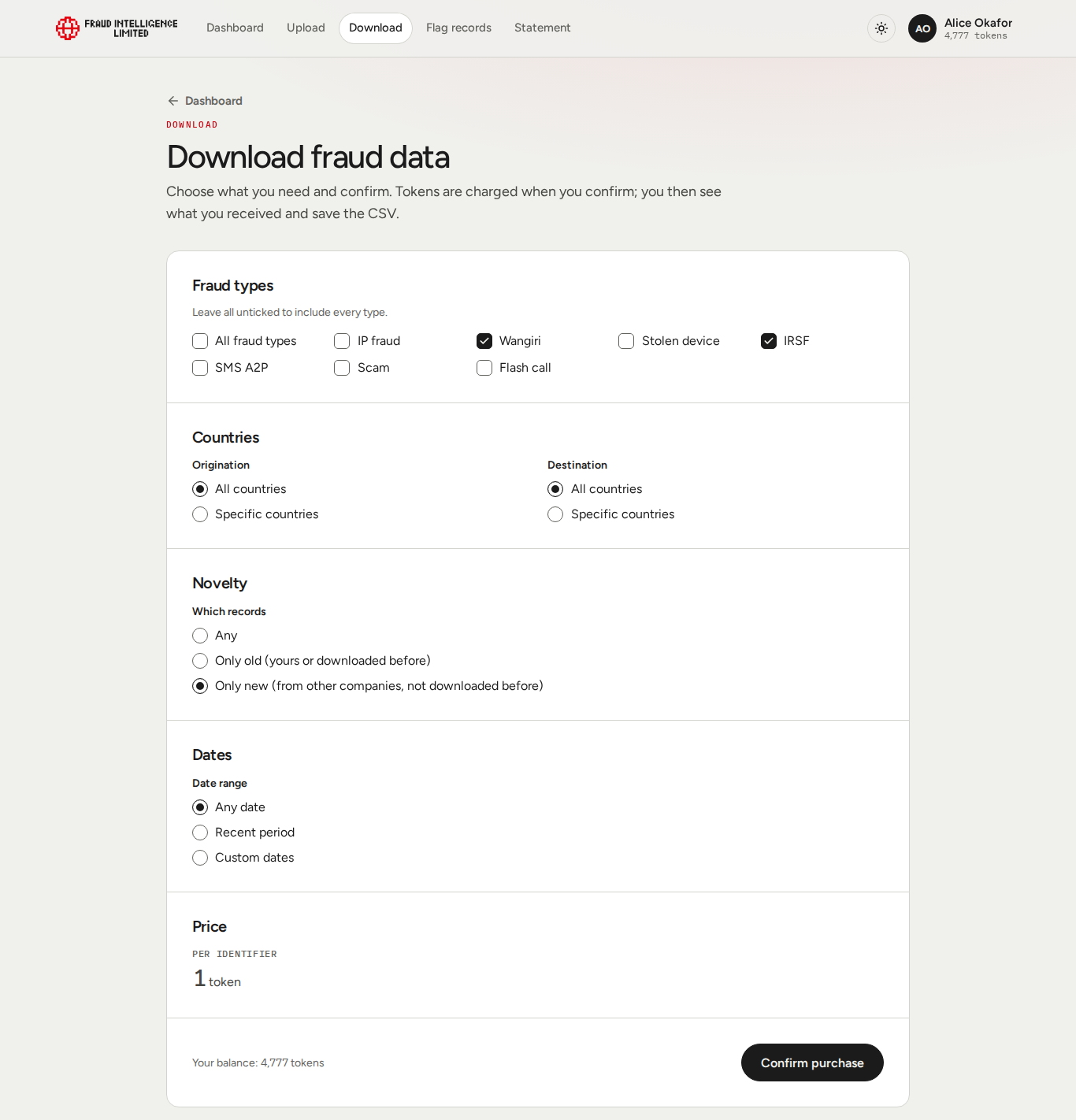
Downloading
- Open Download in the menu.
- Set the filters.
- Check the two unit prices and Your balance at the bottom of the form. The form does not show the cost of the request in advance.
- Select Confirm purchase. Tokens are charged at this point.
- Read the result. It shows how many records you received and what was charged.
- Select Save CSV file. Your browser saves the file to its downloads folder.
Filters
| Section | Options |
|---|---|
| Fraud types | Tick any of IP fraud, Wangiri, Stolen device, IRSF, SMS A2P, Scam, Flash call. Tick All fraud types to tick or clear them all at once. Leaving all unticked also includes every type. |
| Countries | Separately for Origination and Destination: All countries, or Specific countries with a list to pick from. |
| Novelty | Which records to include. See the table below. |
| Dates | Any date; Recent period (today, last 3 days, last week, last month or last year); or Custom dates with From and To. |
Novelty options:
| Option | Records included |
|---|---|
| Any | Every record that matches the other filters. |
| Only old (yours or downloaded before) | Records your company uploaded and records it has downloaded before. These are free. |
| Only new (from other companies, not downloaded before) | Only records other companies uploaded that your company has not downloaded yet. These are the ones that cost tokens. |
Price
The Price section shows the price per identifier, in tokens. It is 1 token per identifier.
How the cost is counted:
- You pay once for each record. Your company's own records and records it has downloaded before are free.
- The price is per identifier. A range costs the price times the number of identifiers it covers.
- Records identified by a website or an email address are free.
- There is no cost preview. The cost depends on how many matching records you have not bought yet, so the amount is shown in the result, after you confirm. Before that, the form shows only the unit price and Your balance.
- If the balance does not cover everything found, you get the records it covers. The rest are counted and priced in the result but are not in the file.
On the Premium plan the section is replaced by the note "Premium plan", and downloads cost no tokens. The heading of the result is then "Search complete".
The balance belongs to your company and is shared by its users. See Tokens, rewards and limits.
The result
The heading tells you how the purchase went: "Purchase complete", "No new records found" when nothing matching was left to buy, or "No new records were bought" when the balance did not cover any record.
| Figure | Meaning |
|---|---|
| Records in the file | Everything you can save: records just bought, old records and your own records. |
| Tokens spent | What was charged. If the balance did not cover everything, the label is Cost of found / spent: the cost of all records found, then what was charged. |
| Balance | Your company's balance before and after the purchase. |
| Types, Origination, Destination, Dates, Novelty | The filters you used. |
| New records found / bought | Records you had not downloaded before: how many matched, and how many were bought. |
| Old records | Records you had downloaded before. Free. |
| Your own records | Records your company uploaded. Free. |
| Total | The number of records in the file. |
Messages you can see:
| Message | Meaning |
|---|---|
| "Your balance did not cover every record" | Part of the records found was bought. Upload fraud data to earn tokens for the rest. |
| "Not enough tokens to buy new records" | Nothing was bought. You can still save old records and your own. |
| "Nothing new matches your request" | Every matching record is already yours or was downloaded before. Change request returns to the form. |
Records you have bought stay bought. If you leave the page without saving the file, run the same request with Only old (yours or downloaded before) to get them again at no cost.
The CSV file
The file is named fraud-intelligence-limited_data_ followed by the date and time. The first line is the header.
| Column | Content |
|---|---|
| Fraud type | Wangiri, IRSF, StolenDevice, IPFraud, SMSA2P, Flashcall or Scam. |
| ID start | The identifier, or the first identifier of a range. |
| ID end | The last identifier of a range. For a single phone number or IP address it equals ID start. Empty for an IMEI, a website or an email address. |
| Originating country | Two-letter country code. Can be empty. |
| Terminating country | Two-letter country code. Can be empty. |
| Timestamp | When the record was uploaded, in UTC, for example 2026-01-31T09:30:00Z. |
| Fraud status | Active or Flagged. Expired records are not in the file. |
| Expiry date | When the record expires, in UTC. |
| Uploader ID | The company ID of the company that uploaded the record. |
| Source ID | The company ID of the company the data came from. Equals Uploader ID unless the uploader named another source. |
| Flagger ID | The company ID of the company that flagged the record. Empty if it is not flagged. |
| Flag timestamp | When the record was flagged, in UTC. Empty if it is not flagged. |
| Asset Definition ID | The unique ID of the record on the Exchange. |
For the meaning of the fields, see Fraud events and Contributions. To download from your own systems, see the API tutorials.