Profile and security
Profile is in the account menu, under your name in the top right corner. The page has two tabs: Profile and Security. Sign out, at the top of the page, ends the session in this browser.
Profile tab
The tab has the cards of your account, the balance and the limit, the plan, and Keys for the API.
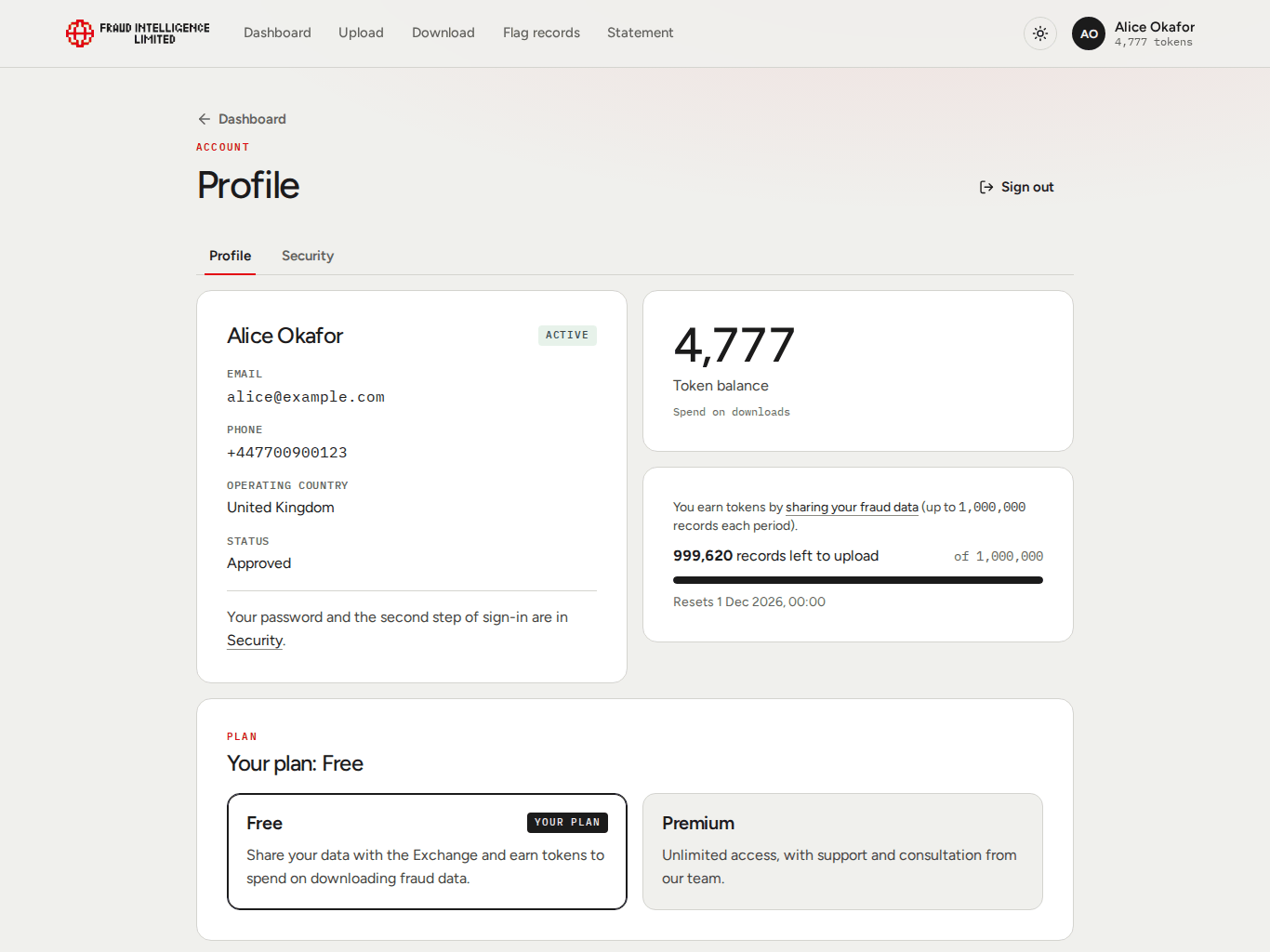
Your account
| Field | Content |
|---|---|
| Name and badge | Your name and the state of the account: Pending, Active or Blocked. |
| The address you sign in with. | |
| Phone | The phone number you registered with. |
| Operating country | The country of your company. |
| Status | Approved or Waiting for approval. |
The details cannot be edited on this page.
Balance and limit
| Item | Content |
|---|---|
| Token balance | Your company's balance, to spend on downloads. |
| Limit bar | "Records left to upload": what is left of your company's upload limit for the current period, the full limit, and the date and time it resets. |
Both belong to the company and are the same for all its users. See Tokens, rewards and limits.
Plan
The card is titled "Your plan" with the plan of your company: Free or Premium. The box of your plan is marked "Your plan". For Premium the card also shows the date of the next payment.
Keys for the API
The web app does not send your password to the Exchange. It derives two key pairs from your email and password in your browser, each time you sign in. The Exchange holds only the public keys.
The card Keys for the API shows both pairs. An integration that calls the API from your own systems needs them.
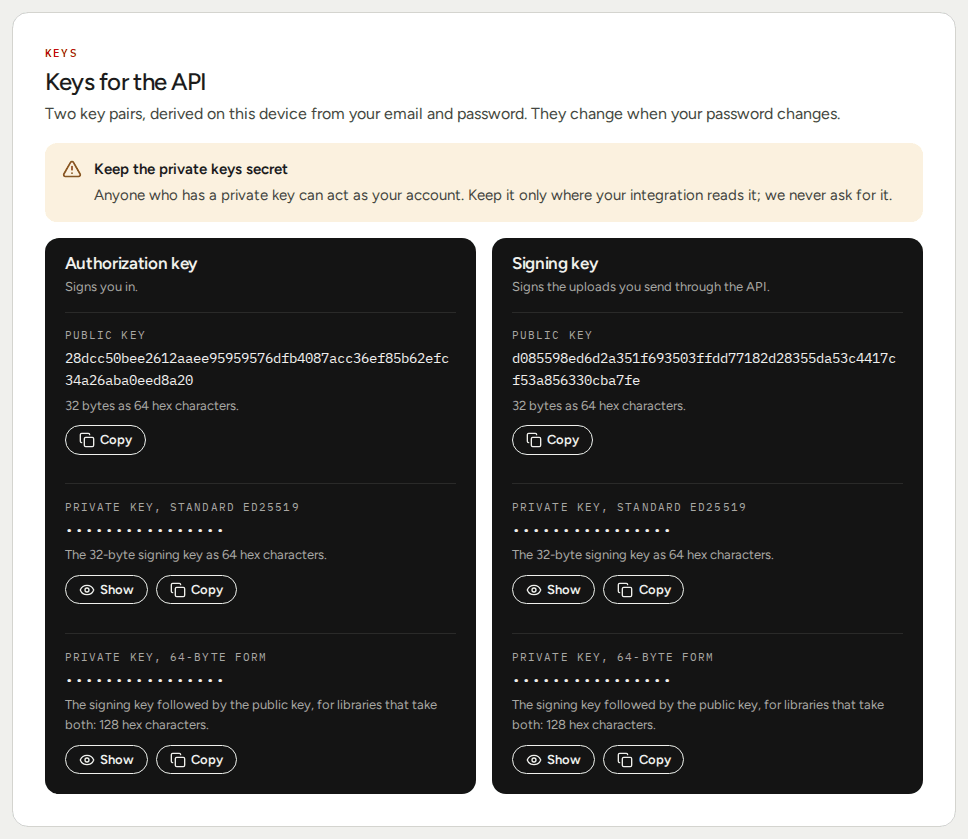
| Key pair | The card says | What it is used for |
|---|---|---|
| Authorization key | "Signs you in." | Signs your sign-in, and proves your password when you change a security setting. An integration that signs in as you uses the same key. |
| Signing key | "Signs the uploads you send through the API." | Signs the uploads and flags that an integration sends through the API. |
Each pair has three rows:
| Row | Content | Buttons |
|---|---|---|
| Public key | 32 bytes as 64 hex characters. Not secret. | Copy |
| Private key, standard Ed25519 | The 32-byte signing key as 64 hex characters. | Show, Copy |
| Private key, 64-byte form | The signing key followed by the public key, as 128 hex characters, for libraries that take both. | Show, Copy |
The two private key rows hold the same key in two forms. Use the one your library takes.
- The private keys are hidden behind dots. Show displays one, and the button then reads Hide.
- Copy puts the value on the clipboard. It works while the key is hidden.
- The Signing key appears once your account is approved. Until then the card says so.
- If the signing key cannot be read, the card says "The signing key could not be read" with Try again.
The card warns: "Keep the private keys secret". Treat the private keys like your password. Anyone who has the private authorization key can sign in as you, subject to your second step. Fraud Intelligence Limited never asks for a private key. Both pairs change whenever your password changes.
To use the keys from your own systems, see the API tutorials.
Security tab
The tab has four cards: Change your password, Second step, Open sessions and Recent sign-ins. If no second step is set up, a warning at the top says that your password is all that protects the account.
Second step
After your password, sign-in asks for one more proof that it is you. Set up more than one method, so that losing one does not lock you out. How each method is used at sign-in is in Signing in.
Each method shows On or Not set up.
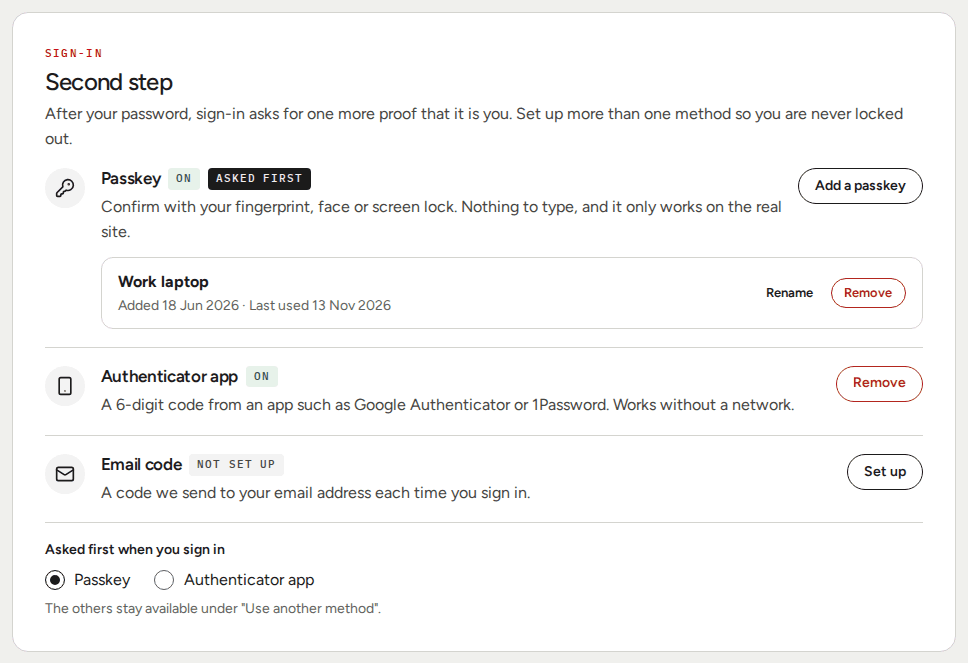
| Method | Set up | Remove |
|---|---|---|
| Passkey | Select Add a passkey, give it a name of up to 64 characters, select Continue, and confirm in the prompt of your browser or device. You can add several passkeys. Each shows when it was added and last used, and can be renamed. | Remove next to the passkey, then enter your password. |
| Authenticator app | Select Set up. Scan the QR code with your authenticator app, or type the setup key into it. Enter the 6-digit code the app shows and select Turn on. | Remove, then enter your password. The app's codes stop working for this account. |
| Email code | Select Set up. If the account has no second step yet, a confirmation link is sent to your email, and nothing changes until you open it. If another method is already on, the email code is turned on at once. | Remove, then enter your password. |
Notes:
- Passkeys can be added and managed only in a browser that supports them.
- The confirmation link for the email code works once. If you open it while signed in as another user, the page asks you to confirm before it changes anything.
- Removing the last method turns the second step off. The account is then protected by the password alone.
- Every change to your methods is confirmed by email. See Security emails.
Which method is asked first
When more than one method is set up, the card shows Asked first when you sign in. Pick the method you want. It gets the badge "Asked first". The others stay available at sign-in under Use another method.
With one method set up, that method is asked.
Changing your password
- On the Security tab, enter your Current password.
- Enter the password you want to use in New password and again in Repeat new password. It must meet the password rules and differ from the current one.
- Select Change password.
What happens:
- Your keys change. The keys for the API are derived from your email and password, so a changed password gives different pairs.
- Every session ends, this one included. Other browsers and programs signed in to your account are signed out. This browser signs in again by itself with the changed password. If your account has a second step, it is asked; if you cancel it, you are sent to the sign-in page.
- Integrations that sign with the old keys must be updated. A system of yours that signs in with the old private key stops working until you give it the changed key.
- Open password reset links stop working.
- You receive the email "Account recovery success".
If the current password is wrong, the form says "That is not your current password. Nothing was changed."
If you forgot the password, use Forgot your password? on the sign-in page.
Open sessions
The card lists every browser or program that is signed in to your account.
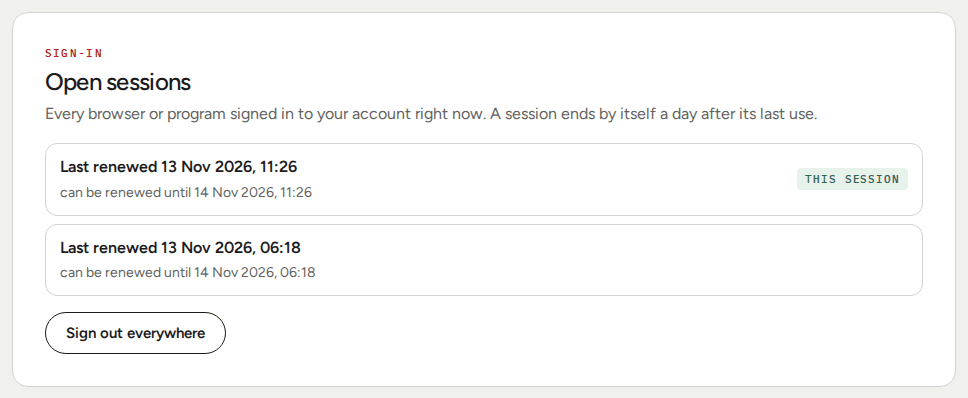
| Shown | Meaning |
|---|---|
| Last renewed | When the session was last renewed. The web app renews its session by itself while you use it. |
| Can be renewed until | When the session ends if it is not renewed again: 24 hours after its last renewal. |
| This session | Marks the session of the browser you are looking at. |
Sign out everywhere ends all sessions, this one included, after you confirm. You then sign in again. Use it if you signed in on a device you do not trust.
Sign-in history
The card Recent sign-ins lists every sign-in to your account in the last 90 days, refused ones too, latest first. The line above the list says how many of the sign-ins shown were refused. Show older loads more.
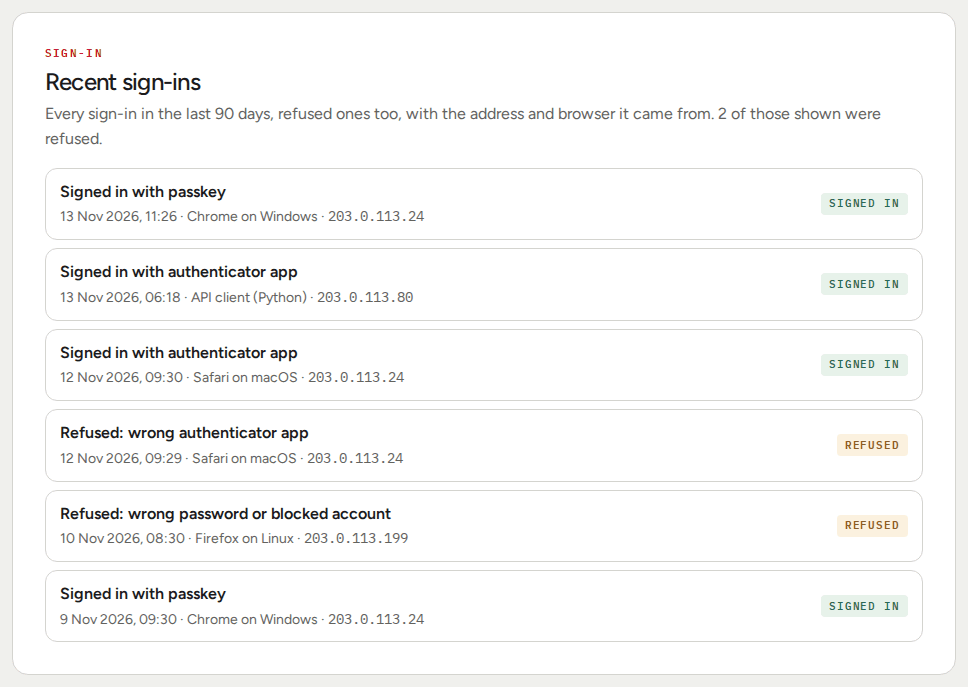
Each row shows:
| Part | Content |
|---|---|
| What happened | "Signed in with password", or "Signed in with" the second step used: passkey, authenticator app or email code. For a refused sign-in: "Refused: wrong" and the second step that failed, or "Refused: wrong password or blocked account". |
| When | Date and time. |
| Browser and system | For example "Chrome on Windows". A sign-in from a script or integration reads "API client" with its kind, for example "API client (Python)". "Unknown browser" if it cannot be told. |
| Address | The IP address the sign-in came from. |
| Badge | Signed in or Refused. |
If you see a sign-in you do not recognise, change your password and select Sign out everywhere.
Security emails
The Exchange tells you by email when something about your sign-in changes. The emails are sent to the address of your account. The table lists them by subject.
| Sent when | |
|---|---|
| 2FA code | You sign in with the email code as second step. Contains the code. |
| 2FA confirmation | You set up the email code on an account that has no second step. Contains the confirmation link. |
| 2FA enabled | A second step method was added: a passkey, the authenticator app or the email code. |
| 2FA disabled | A second step method was removed, by you or by a Fraud Intelligence Limited administrator. |
| Your sign-in method has changed | The method asked first at sign-in was changed. Names the method. |
| Password reset link | A password reset was requested for your address. Contains the link. |
| Account recovery success | Your password was changed, on the Security tab or through a reset link. |
| Notice that a password was set for your account | A Fraud Intelligence Limited administrator set the password of your account. Your open sessions have ended. |
| Sign-in to your account after failed attempts | Someone signed in to your account after five or more failed attempts in a row within 24 hours. Shows the number of failed attempts and the time of the last one. Sent at most once in 24 hours. |
| Account has been blocked | Fraud Intelligence Limited blocked your account. Gives the reason. Your sessions end. |
| Account has been unblocked | Fraud Intelligence Limited unblocked your account. |
Company admins also receive "A user was added to your company" and "A user was removed from your company". See My company.
If you receive one about something you did not do, change your password, select Sign out everywhere, and write to support@fraudintelligencelimited.com.
See also Security and data.